
The notch teleprompter for Mac
Read your script.
Keep eye contact.
A teleprompter that sits in your MacBook's notch, right under the camera.
macOS 14+Apple Silicon & IntelNo account
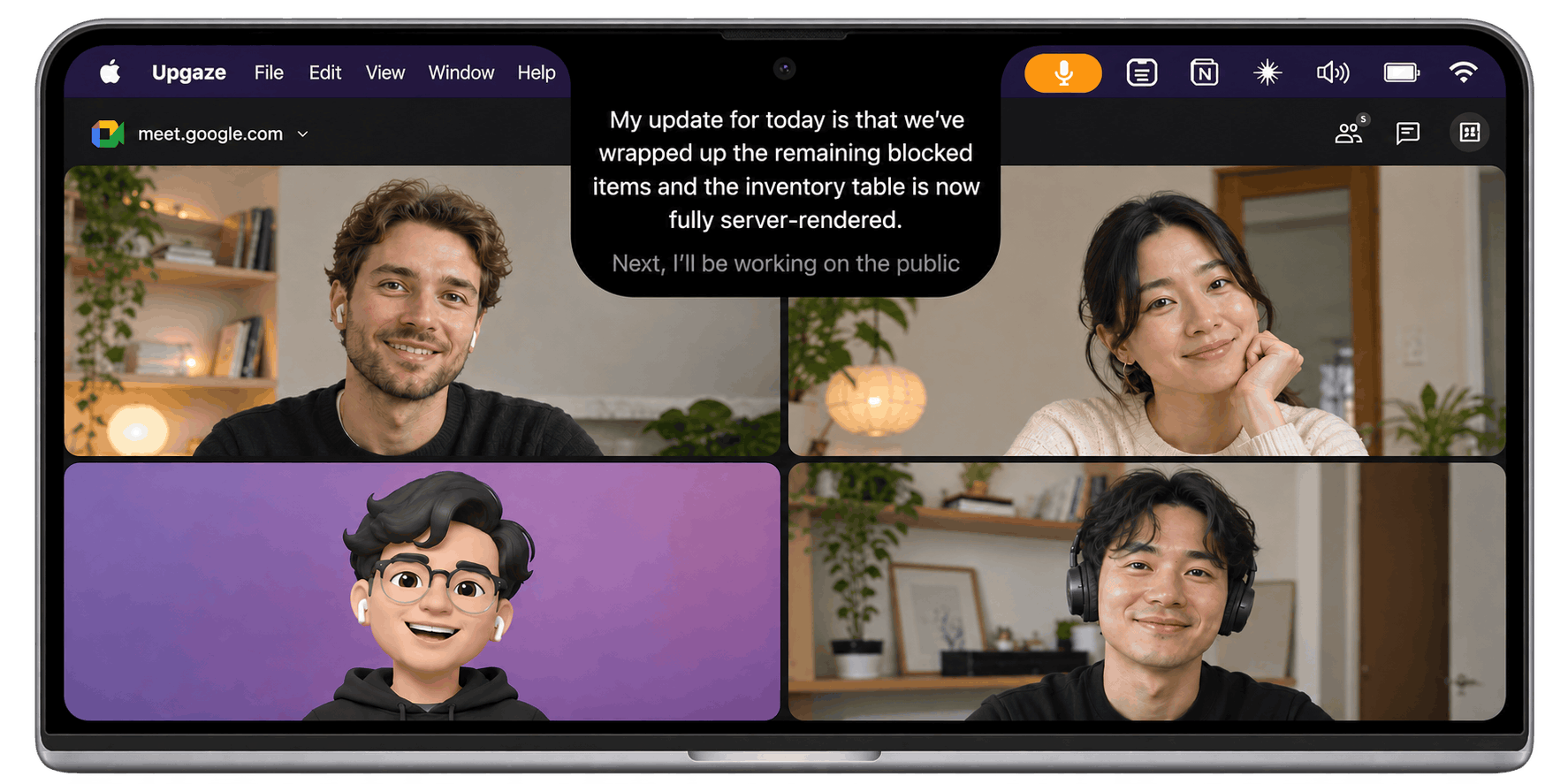
The difference
Your audience can tell where you're looking.
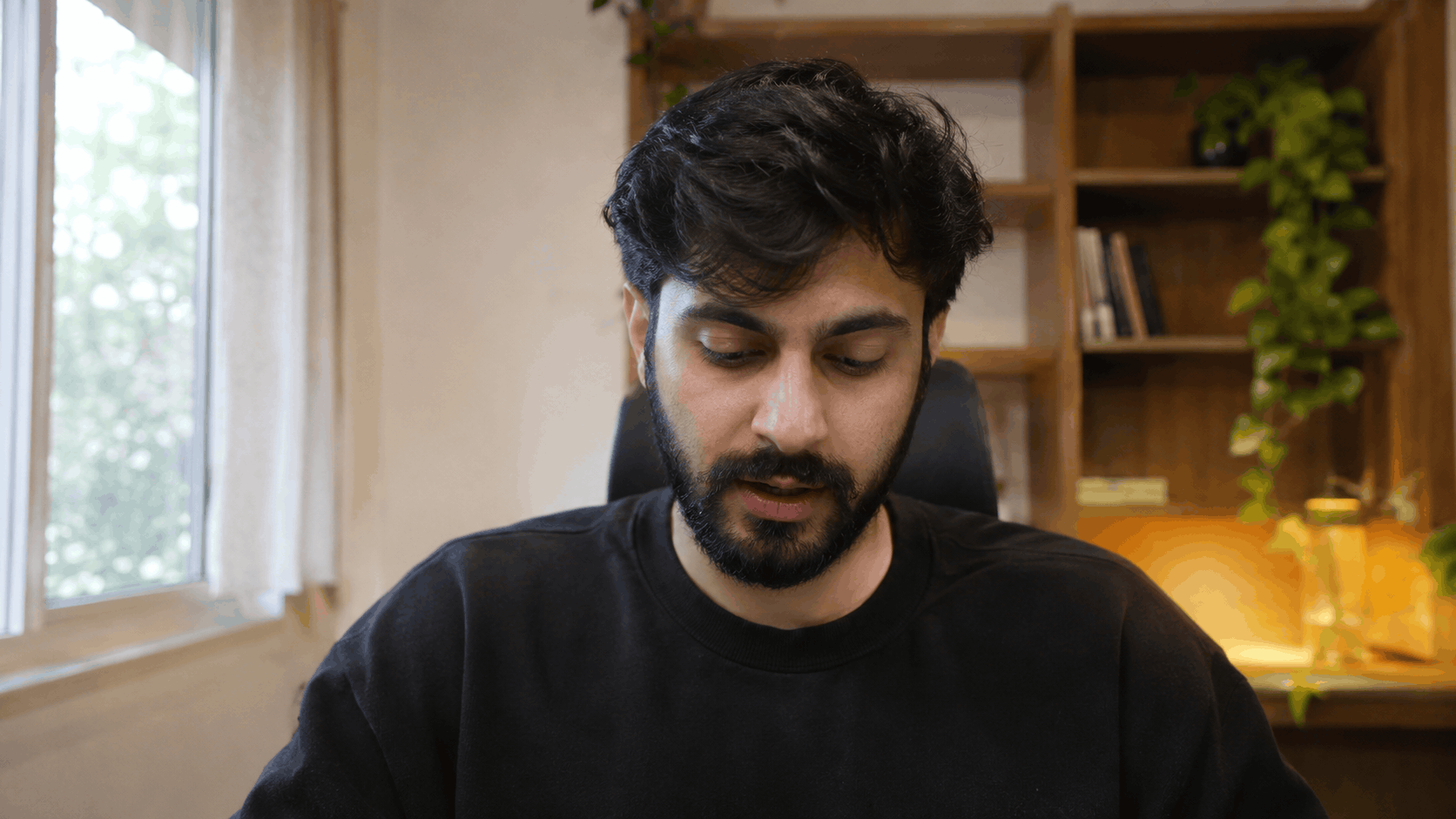

How it works
Ready in three steps.
Paste your script
Paste or type it in, or import a Markdown or text file.
Press ⌃⌥P
The prompter appears in the notch and starts scrolling.
Start talking
Read at the lens. Pause any time, it waits for you.
Features
Everything a teleprompter should do. Nothing it shouldn't.
Scrolls when you speak, pauses when you stop
[pause] markers and notes-to-self in your script
Global shortcuts you can rebind
Notch, corner or floating, on any display
Font, size, spacing and speed controls
Works with
Use it on any call or recording.
- ZoomHidden
- Google MeetHidden
- Microsoft TeamsHidden
- LoomHidden
- OBSHidden
- QuickTimeHidden
“Hidden” means the prompter stayed out of an entire-screen share or recording in our tests on macOS 26.5. Share a single window and it stays out of any app.
Who it's for
For anyone who talks to a camera.
Creators
Record videos and courses in fewer takes, without reading off a second screen.
Sales and client calls
Hit every point of your pitch while looking your client in the eye.
Presenting and interviews
Keep your talking points close in talks, webinars and interviews.
Privacy
Your words stay on your Mac.
No account
Download it and start. No sign-up, ever.
No tracking
No analytics, no crash reporters, nothing phoning home.
Works offline
Everything runs locally. Only the update check uses the network.
Nothing is recorded
Voice scrolling only checks whether you're speaking. Audio is never recorded or saved.
Pricing
Pay once. Keep it.
$19
One-time purchase
- Every feature
- Free 1.x updates
- 14-day free trial
- 30-day no-questions refund
Others charge $10–20 a month.
Discounts applied automatically in many countries.
FAQ
Questions, answered.
Does it show up in my recordings or screen shares?
With “Hide from screen recording and sharing” on, which is the default, the prompter stayed hidden in every app we've tested. macOS lets each app decide how it captures the screen, so we can't promise it everywhere. If one ever shows it, share a single window instead: the prompter is never part of a window share.
See the apps we've testedWhat if my Mac has no notch?
Upgaze sits at the top centre of your screen, just under the menu bar. You can also put it in a corner, or drag it anywhere.
Does it work on an external monitor?
Yes. Choose any display. If you unplug it, Upgaze moves to your main display and goes back when you plug it in again.
Is my microphone recorded?
No. Voice scrolling only checks, on your Mac, whether you're speaking. Audio is never recorded, saved or sent anywhere, and the microphone is only on while voice scrolling is on and the prompter is showing.
Does it work offline?
Completely. The only time Upgaze uses the network is a daily update check, which you can turn off.
Does it work on Intel Macs?
Yes. Upgaze runs natively on Apple silicon and Intel Macs with macOS 14 Sonoma or later.
Which languages does it support?
Scripts can be in any language, including Hindi and other Devanagari scripts, and emoji. Voice scrolling listens for speech, not words, so it works whatever language you speak.
How do the trial and refunds work?
Every feature is free for 14 days, with no account and no card. If you buy and it isn't for you, email us within 30 days for a full refund, no questions asked.
Will updates be free?
Yes. Every 1.x update is free, and Upgaze updates itself.